IIS

Internet Information Services, also known as IIS, is a Microsoft web server that runs on Windows operating system and is used to exchange static and dynamic web content with internet users. IIS can be used to host, deploy, and manage web applications using technologies such as ASP.NET and PHP.
unnamed ICANIO We bring your ideas to life IIS DevOps & Cloud Engineering, Insights

John Stephen Jacob Nallamu

20 Nov 2025

iis Logo ICANIO We bring your ideas to life IIS DevOps & Cloud Engineering, Insights

Installation and Initial setup for IIS

1. IIS Installation

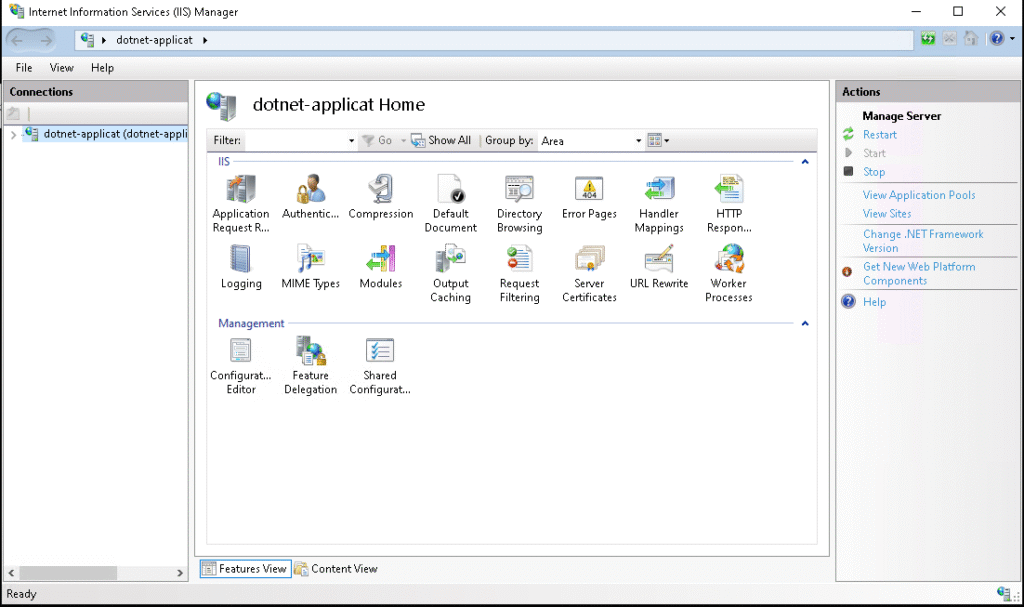
Enable IIS Feature through Powershell and Restart the Windows Machine

dism.exe /online /enable-feature /featurename:IIS-WebServer /all
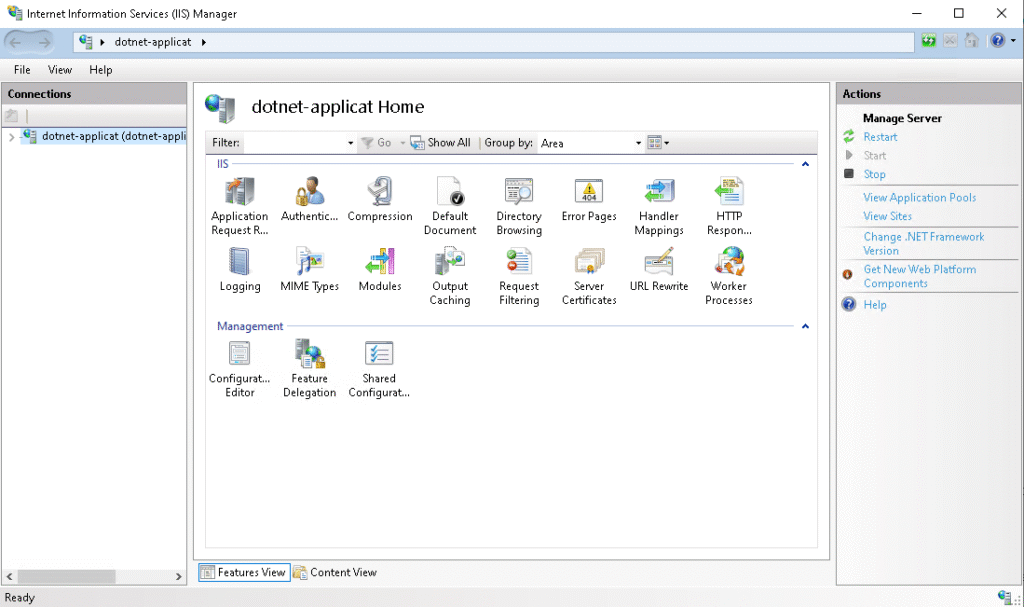
IIS something looks like this
image 5 ICANIO We bring your ideas to life IIS DevOps & Cloud Engineering, Insights
2. Install Modules for IIS
a. Install Application Request Routing
b. Install URL Rewrite
https://learn.microsoft.com/en-us/iis/extensions/url-rewrite-module/using-url-rewrite-module-20
3. Setup Configuration for Reverse Proxy
a. Double click the Application Request Routing
image 6 ICANIO We bring your ideas to life IIS DevOps & Cloud Engineering, Insights
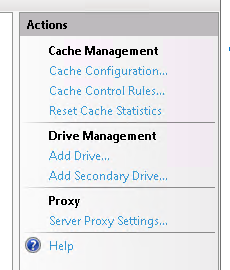
b. Click the Server proxy settings on Actions tab
image 7 ICANIO We bring your ideas to life IIS DevOps & Cloud Engineering, Insights
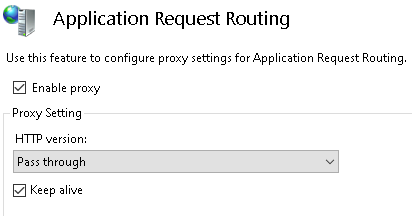
c. Check the Enable proxy tick box
image 8 1 ICANIO We bring your ideas to life IIS DevOps & Cloud Engineering, Insights
d. Apply the changes in the Actions tab
image 9 ICANIO We bring your ideas to life IIS DevOps & Cloud Engineering, Insights

Use the Reverse Proxy method to host the Node.js Application in IIS

1. Add new site
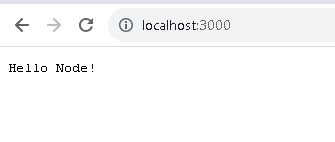
a. First step is to run the Web Application locally or on a server
image 10 ICANIO We bring your ideas to life IIS DevOps & Cloud Engineering, Insights
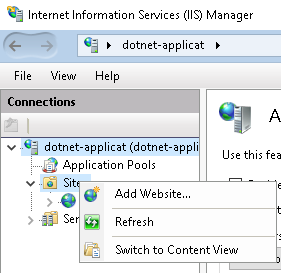
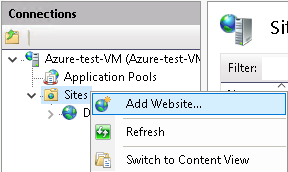
b. Then, Open IIS and right-click on the Site folder located in the Connections tab, and click the Add Website
image 11 ICANIO We bring your ideas to life IIS DevOps & Cloud Engineering, Insights
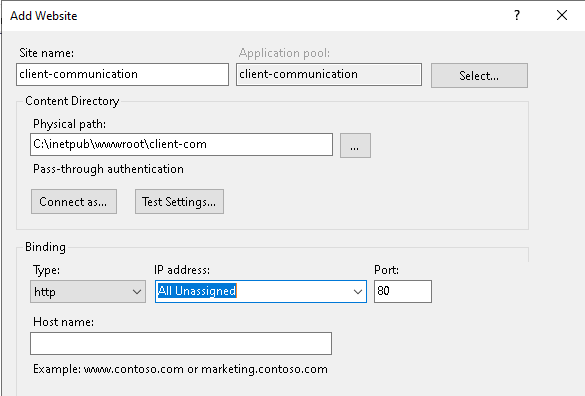
c. Enter the new name for the site
image 12 ICANIO We bring your ideas to life IIS DevOps & Cloud Engineering, Insights
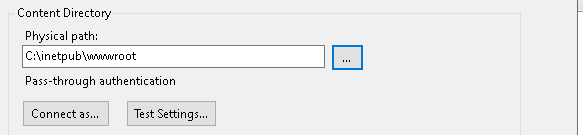
d. Add any temporary path
image 13 ICANIO We bring your ideas to life IIS DevOps & Cloud Engineering, Insights
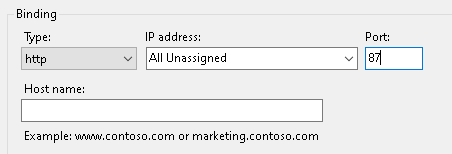
e. Set a unique port number and then click OK
image 14 ICANIO We bring your ideas to life IIS DevOps & Cloud Engineering, Insights
2. Add the NodeJS Application
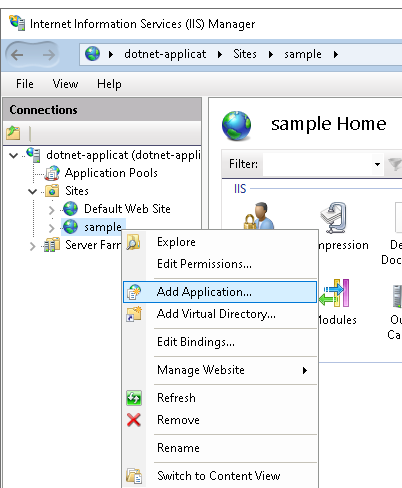
a. Press Right-click on the Site that we created before
image 15 ICANIO We bring your ideas to life IIS DevOps & Cloud Engineering, Insights
b. Enter a new name for your application
image 16 ICANIO We bring your ideas to life IIS DevOps & Cloud Engineering, Insights
c. Browse to your Application Actual path and click OK
image 17 ICANIO We bring your ideas to life IIS DevOps & Cloud Engineering, Insights
3. Add the NodeJS Localhost URL to IIS URL Rewrite
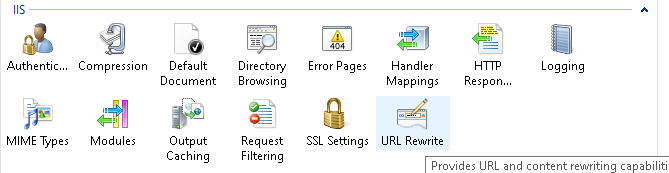
a. Select the Site you created just before and double-click on the URL Rewrite
image 18 ICANIO We bring your ideas to life IIS DevOps & Cloud Engineering, Insights
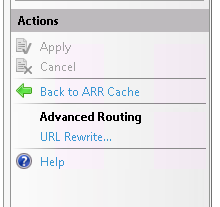
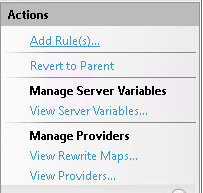
b. Double click on the Add rules which is located  on Actions tab
image 19 ICANIO We bring your ideas to life IIS DevOps & Cloud Engineering, Insights
c. Double-click on the Reverse Proxy 
image 20 ICANIO We bring your ideas to life IIS DevOps & Cloud Engineering, Insights
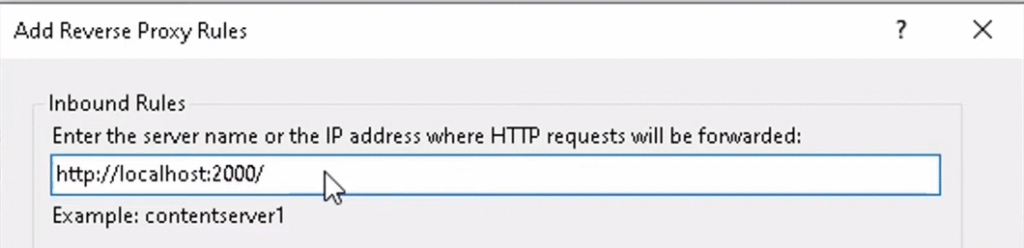
d. Put the URL of your Application and Click OK
image 21 ICANIO We bring your ideas to life IIS DevOps & Cloud Engineering, Insights
e. After creating the URL Rewrite, double-click on this Rewrite folder
image 22 ICANIO We bring your ideas to life IIS DevOps & Cloud Engineering, Insights
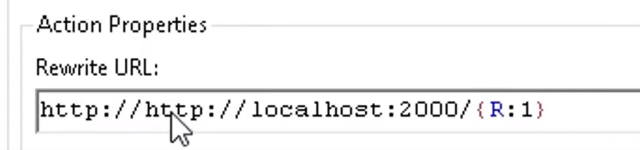
f. There is one bug that needs to be sorted inside the rewrite folder, so double-click to get inside and change the duplicate “http://” URL to http://localhost:<port number>
image 23 ICANIO We bring your ideas to life IIS DevOps & Cloud Engineering, Insights
g. Then apply the Changes, and you will now be able to use your NodeJS application in IIS

Use the Normal Method to host a .NET Core Application on IIS

Deploy and Host an ASP.NET CORE Application on IIS Tutorial
https://youtu.be/Q_A_t7KS5Ss?si=QczaDqbpIRnMhdfi
1. Install a .NET hosting bundle installer
Download the .NET hosting bundle and run it.
https://dotnet.microsoft.com/en-us/download/dotnet/thank-you/runtime-aspnetcore-8.0.0-windows-hosting-bundle-installer
2. Add the NodeJS Application
a. Right-click the Sites under the connections tab  and click the Add website
image 24 ICANIO We bring your ideas to life IIS DevOps & Cloud Engineering, Insights
b. Put any name and select the New path for application, and also, if you have any domain name, set it in the hostname
image 25 ICANIO We bring your ideas to life IIS DevOps & Cloud Engineering, Insights
3. Configure the Application Pool
  1. Go to the Application Pool under the Connections tab
  2. And double-click the application pool you previously created
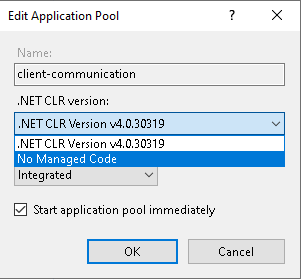
  3. Edit the .NET CLR version to No Manage code
image 26 ICANIO We bring your ideas to life IIS DevOps & Cloud Engineering, Insights
4. Publish the .NET Application to the site path
a. Locate your .NET application location, and then publish to the site path that you created before
dotnet publish -c Release -o < \path\to\sites >
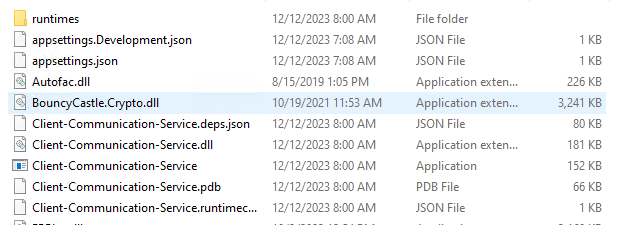
b. Check whether the published files are successfully created or not. It would be Something like this
image 27 ICANIO We bring your ideas to life IIS DevOps & Cloud Engineering, Insights
5. Refresh the Application Pool
  1. Select the Application Pool that you created before
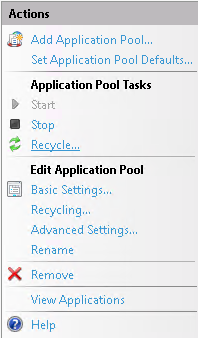
  2. And recycle the Application Pool under the Actions tab
image 28 ICANIO We bring your ideas to life IIS DevOps & Cloud Engineering, Insights

Create the SSL Certificate for IIS Sites

1. Download the Certify web tool
The Certify tool is used to create the SSL certificate for IIS Hosted Web sites
https://certifytheweb.com/
2. Create the Certificate
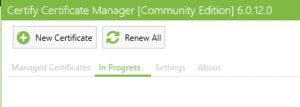
  1. Click the New Certificate

    image 29 ICANIO We bring your ideas to life IIS DevOps & Cloud Engineering, Insights

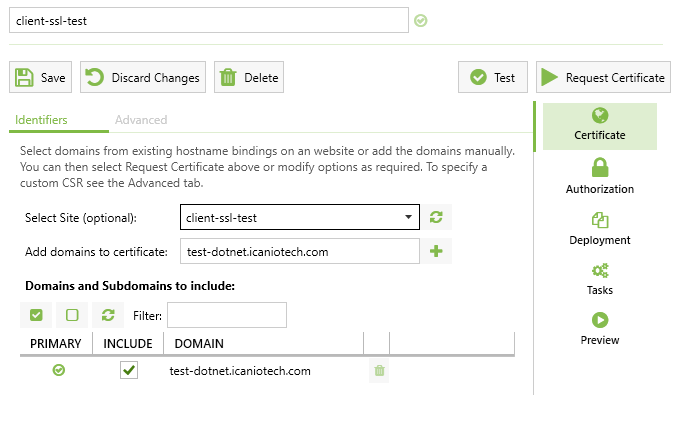
  2. Select your IIS Site Name in the Select site options
  3. And add your domain name in Add domains to certificates section
image 30 ICANIO We bring your ideas to life IIS DevOps & Cloud Engineering, Insights
3. Check the Domain Certifications

The lock symbol indicates the SSL certification is Created Successfully

image 31 ICANIO We bring your ideas to life IIS DevOps & Cloud Engineering, Insights